Why Two Minecraft Server Lists Show Different Supported Versions
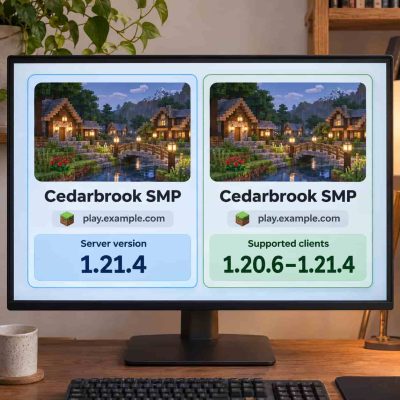 When you browse Minecraft servers by version, you might find the same server in two directories. One lists a single version, while the other advertises a range. The address matches, but the joining requirements seem different. This can happen because directories collect version information differently and update it at different times. Some display a server’s reported status, while others include information supplied by its owner. Compatibility plugins add another layer by allowing players on several versions to connect. Knowing where each label comes from helps you choose which game version to launch and avoid unnecessary troubleshooting.
A Version Label Can Describe Different Things
A Minecraft listing may describe the software version running the world, the versions players can connect with, or an advertised compatibility range. Those details can overlap, but a single label may leave their meaning unclear.
Status data also contains different kinds of version information. The Minecraft Server Status API documents a version field that can contain multiple versions or additional text, alongside a protocol field with a numeric identifier and, when available, a corresponding version name.
A directory displaying the text field could therefore present something different from one using the protocol identifier. When comparing listings, look for explanations such as “server version,” “supported clients,” or “recommended version.” These labels help establish what the directory intends to describe.
Cached Results Reflect Earlier Checks
Directories can save status responses and reuse them for a period instead of contacting the server whenever someone opens a page. This process, called caching, reduces repeated requests. The MC Status documentation explains that its status responses use caches with durations determined by the requested route.
Imagine an administrator updates a server during the afternoon. One directory checks after the update, while another still displays information collected beforehand. Their version labels can disagree until fresh results reach both pages.
Refreshing your browser may retrieve the same saved result. Check for a status timestamp, a recent update notice, or a description of the directory’s checking schedule. Also distinguish an automated status check from the date an owner last edited the listing, since those timestamps describe different activities.
Owner-Submitted Tags Require Manual Updates
Some directories let owners choose supported versions when creating or editing a listing. Minecraft servers, for example, instruct owners to submit versions and accurate tags alongside their server address and description.
Manual information can help because an owner can explain a compatibility range that an automated status check does not fully capture. However, a listing can become outdated after a software upgrade, configuration change, or removal of compatibility support.
For example, an owner might update the connection instructions on their website but forget to change tags on every directory. A banner could also retain an older version claim after the listing description changes. Compare the version badge, description, and official joining guide, then check whether recent announcements explain the difference.
Compatibility Plugins Broaden Connection Options
Java servers can use protocol translation software to accept clients from additional versions. ViaVersion allows newer clients to connect to older server versions. ViaBackwards works with ViaVersion to enable supported older clients to connect to newer servers. The available combinations depend on the software’s supported versions and the server’s setup.
This matters when directories describe compatibility. A server running one underlying version may accept several client versions. One listing might emphasize the underlying version, while another advertises the broader connection range.
That range also needs context. Installing a newer client does not upgrade the world running on the server. Ask which version the administrators recommend for the intended experience, especially when custom interfaces or particular game modes matter to you. Check an advertised range against current joining instructions and actual connection results.
Compare the Exact Connection Details
Before treating two labels as contradictory, confirm that both listings refer to the same connection target. Compare the full hostname, port, and edition. Similar names or matching artwork can make separate entries look identical.
Read any instructions for individual game modes as well. A network listing may give general joining information while a specific mode has additional requirements. Ask whether the advertised version range covers the activity you want to play.
When testing, record the client version you selected and copy any error message accurately. An incompatibility message gives administrators more useful information than a general report that joining failed.
Check Compatibility Before Changing Your Setup
Start with the server’s official website or announcement channel and find its current recommended client version. Compare that guidance with the directory’s supported versions and any visible update dates. If the information conflicts, ask staff which versions are currently accepted.
Try joining with the recommended version and confirm that you can enter your intended mode. If you still encounter problems, share the address, edition, client version, and error message with staff. Server owners can use the same report to correct stale tags, update status text, and make joining instructions consistent across directories. Clear details help players select a working version and give administrators a concrete mismatch to investigate.