5 Software Compatibility Questions to Ask Before Buying Direct Thermal Label Rolls
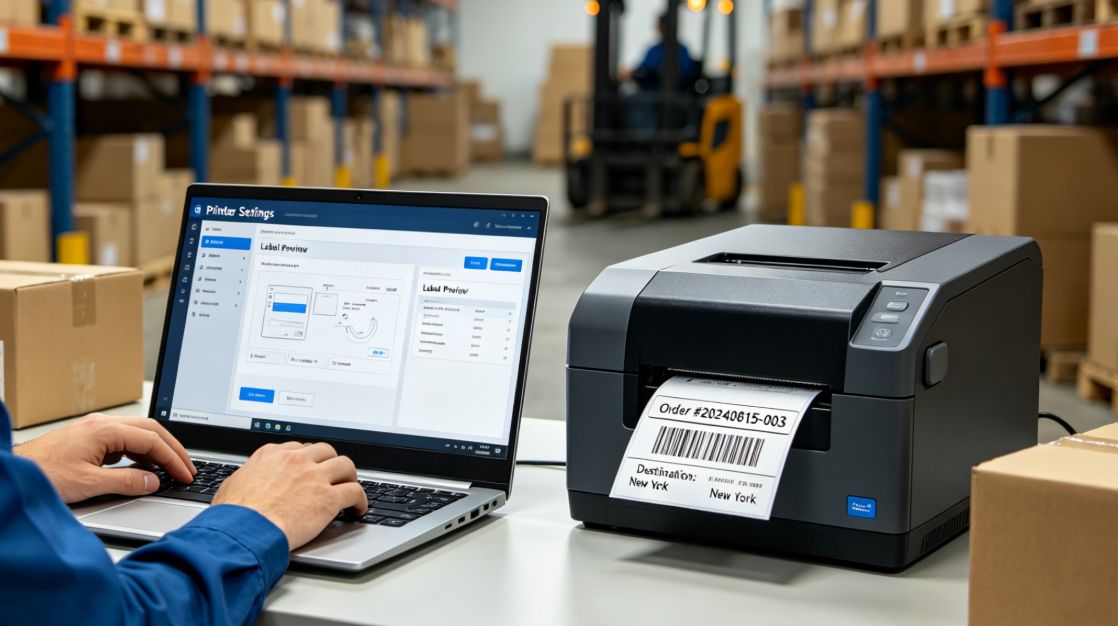
Thermal printers depend on precise communication between hardware, software, and media to produce readable labels. GS1, Zebra Technologies, and SATO all note that incorrect label dimensions, sensor settings, or print configurations can lead to misaligned prints, unreadable barcodes, and wasted supplies. Checking compatibility before purchasing labels helps prevent costly printing issues.
Before ordering direct thermal label rolls, confirm that the roll dimensions, sensing method, surface finish, and printer software settings all work together. A few simple compatibility checks can prevent unnecessary downtime, reduce wasted materials, and ensure reliable label performance across shipping, retail, healthcare, and warehouse operations.
1. Does the Label Size Match Your Printer Driver Settings?
The first question should always focus on label dimensions. Your printer driver must match the exact width and height of the labels you plan to use. Even a small mismatch can shift print positions, cut off information, or leave excessive blank space.
Experts at Zebra Technologies explain that proper media calibration and accurate label size settings are essential for consistent printing. Businesses should verify printer preferences, software templates, and application settings before installing a new roll. This simple step minimizes alignment problems and reduces wasted labels.
2. Is the Correct Media Sensing Method Selected?
Most thermal printers detect labels using gap sensing, black mark sensing, or continuous media settings. Choosing the wrong sensing method often causes skipped labels or inconsistent print placement.
Documentation from SATO and TSC Auto ID Technology explains that printers rely on sensors to identify where each label begins and ends. If the sensor setting does not match the media design, calibration may fail regardless of the quality of the labels themselves. Always check both the printer configuration and driver settings before printing a production batch.
3. Does Your Software Support the Label Format?
Many organizations use shipping, inventory, or barcode applications that include predefined templates. Those templates may assume specific label sizes or printer languages, such as ZPL, EPL, TSPL, or other command formats. As software continues to evolve across industries, improvements in automation and system integration are becoming increasingly important. Similar trends are discussed in software advancements transforming the future of free sports broadcasting, which explores how modern software innovations improve performance and user experience in specialized applications.
Research from Loftware, a recognized enterprise labeling software provider, shows that standardized templates improve printing accuracy and reduce operational errors. Before purchasing new media, verify that your labeling software supports the intended dimensions, barcode placement, and print resolution. Updating templates before deployment saves time and reduces troubleshooting later.
4. Is the Label Surface Appropriate for Your Application?
Compatibility extends beyond software settings. The label’s coating and finish should match the intended environment and printer capabilities. Direct thermal materials are designed to react to heat without requiring ink or ribbons, but different coatings provide varying levels of resistance to moisture, abrasion, and light exposure.
UPS shipping guidance and information published by FedEx indicate that clear, durable shipping labels improve barcode readability throughout transportation. If labels will face extended storage, outdoor exposure, or frequent handling, evaluate whether the selected material provides sufficient durability for the application. Choosing the right finish supports both print quality and scanning reliability.
5. Have You Confirmed Printer Firmware and Driver Compatibility?
Printer drivers and firmware receive regular updates to improve performance, fix compatibility issues, and support newer media configurations. Older drivers may not recognize updated printer features or advanced calibration options.
Reports from Microsoft recommend keeping printer drivers current to maintain stable communication between applications and printing devices. Similarly, printer manufacturers advise installing firmware updates when introducing new media types or software versions. Before changing supplies, confirm that both the operating system and printer software are fully updated.
Why These Compatibility Checks Matter
- Reduce wasted labels caused by incorrect calibration.
- Improve barcode readability and scanning accuracy.
- Minimize printer downtime during production.
- Help maintain consistent print quality across different applications.
- Simplify troubleshooting by eliminating common configuration errors.
Many printing problems that appear to be hardware failures actually result from configuration mismatches. Reviewing printer settings before purchasing supplies saves both time and operational costs.
Conclusion
Buying thermal labels involves more than selecting the correct size. Software settings, printer drivers, sensing methods, media construction, and firmware all contribute to reliable printing performance. Taking a few minutes to verify these compatibility factors helps ensure smooth installation and dependable output from the first label to the last.
As labeling systems continue to integrate with warehouse management, shipping, and inventory platforms, maintaining compatibility between software and printing supplies will become even more important. Careful planning today helps businesses avoid interruptions while supporting efficient, accurate labeling workflows in the future.